installationspot.info

Learn About Common Printer Problems and Their Meanings

A Simple Guide to Understanding the “Paper Size Mismatch” Message

🖨️Understanding the “Paper Size Mismatch” Message During Printing Seeing a “Paper Size Mismatch” message while printing can be confusing at first. This message usually appears...
Read More
A Step-by-Step Guide to Wireless Printing from an iPhone

📱A Step-by-Step Guide to Wireless Printing from an iPhone Wireless printing allows iPhone users to send photos, documents, and emails to a printing device without...
Read More
How to Add a Printer to a Chromebook Step-by-Step

🖨️How to Add a Printer to a Chromebook (Step-by-Step Guide) Printing from a Chromebook becomes straightforward once you understand how Chrome OS recognizes connected printing...
Read More
How to Fix a Printer That’s Still Not Printing in Color After Deep Cleaning

🖨️How to Fix a Printer That Isn’t Printing in Color When a printer suddenly starts printing only in black and white, it can be confusing...
Read More
How to Connect a Printer to Wi-Fi: Easy Step-by-Step Guide

🖨️How to Set Up a Wireless Printer: A Simple Step-by-Step Guide A wireless printer lets you print directly from a computer, smartphone, or tablet —...
Read More
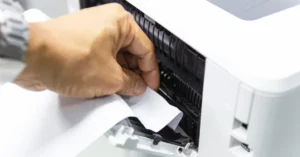
How to Fix a Paper Jam in Your Printer: Quick & Easy Guide

🖨️How to Clear a Paper Jam in Your Printer (Step-by-Step Guide) Nothing disrupts your workflow faster than a paper jam. Luckily, most jams are easy...
Read More
How to Clear the Printer Queue: Simple Solutions That Work

🖨️How to Clear the Printer Queue on Windows and Mac (Easy Step-by-Step Guide) Ever sent a document to print and then realized it was the...
Read More
Easy Ways to Remove 3D Prints and Keep Your Printer Bed Clean

🖨️How to Safely Remove Stuck 3D Prints from Your Printer Bed Nothing is more frustrating than a 3D print stuck firmly to the build plate...
Read More
Printer Setup and Installation Guide

Getting your printer ready allows you to quickly turn digital files — like documents, photos, or graphics — into physical copies. Proper setup ensures your printer works efficiently and produces reliable results. Follow these simple steps to install your printer correctly.

  • Connect the printer’s power cord to a wall socket and turn it on.
  • Attach the printer to your computer using a USB cable.
  • Wait for your system to recognize the new device.
  • Follow the on-screen prompts to install the required drivers and software.
  • If you used a setup disc, remove it after the installation finishes.
  • Finally, print a test page or perform a scan to make sure everything is working properly.

Printer Offline - Guide

Sometimes your printer may appear as “offline” due to network or connection settings. This can happen if the printer isn’t properly linked to your computer or if certain modes are enabled. You can quickly restore normal printing by adjusting your printer settings. Follow these steps:

  • Click the Start menu and open Settings.
  • Select Devices, then go to Printers & Scanners.
  • Find your printer in the list and click Open Queue.
  • In the printer menu, make sure Use Printer Offline is not checked.
  • If this option is enabled, uncheck or turn it off.
  • Close all windows and check if the printer status changes to Online

Guide: How to Connect Your Printer to Wi-Fi

A common issue users experience is when a printer does not connect to Wi-Fi. This can happen due to outdated drivers, incorrect network settings, or firewall configurations. In most cases, reviewing your connection setup can help restore communication between the printer and network. Start by checking both the cable connections and the wireless settings to ensure everything is properly configured.

  • Ensure that the USB cable is securely connected between your printer and computer.

  • Many printers include a wireless connectivity test — run this test to check the connection.

  • Confirm that your computer is connected to the correct wireless network.

  • Inspect the USB cable for any damage. If the cable is faulty, replace it with a new one.

  •  

How to connect printer to Wifi

Connecting a printer to Wi-Fi is simple when you follow the right steps. Here’s a step-by-step guide:

  1. Place the printer near your wireless router, ideally within 5–6 feet.

  2. Turn on the printer and check that it is ready to connect to Wi-Fi.

  3. Many printers will automatically connect to the wireless network once powered on.

  4. Depending on your printer model, the Wi-Fi may not connect automatically.

  5. Keep your Wi-Fi network name and password handy for manual setup if needed.

  6. Once connected, your printer will be accessible over the wireless network.

  7. Ensure the printer is linked to all devices you want to use for wireless printing.

How to Use Our Guides for Easy Printer Setup

Printer issues are common, just like with other devices, and many online guides can help address them.

If standard solutions don’t work, our step-by-step guides can provide clear and easy instructions to help you troubleshoot and manage printer issues.

These guides are designed to help users understand the problem, follow accurate steps, and ensure their printer works correctly. You can rely on our instructions for clear guidance on common printer errors and setup challenges.

help

Frequently Asked Questions

What are the steps to setup a new printer?
If you have a good knowledge about the printer devices then setting up a printer is not a hard core for you. By following the simple steps you can simply set up your printer.
Steps
1

Turn on your printer and connect it with the internet.

2

Then go to the printer manufacturer website.

3

Fill the information asked about your printer.

4

Tap on the Driver option and from your dashboard download it.

5

To check if your printer is set up or not just give a test document to print.

Printer drivers are software that translate data into a format accessible by printers. And it helps the printer function properly if the driver is updated to the most recent version from time to time.

It doesn’t take too much time to update the printer driver. Below are the steps to refresh the printer driver:

  • In the printer’s control panel, navigate to Hardware & Sound.
  • Then select Device Manager and click on the Printers Category.
  • The printer you want to update, click right on that.
  • Then, select the Update Driver option.
  • Lastly, to Update Driver Software you have to select the Search Automatically option.

When the ink cartridge is drained completely it needs to be quickly replaced. Kindly, follow the mentioned instructions to replace the cartridge:

  • Let your printer stop.
  • Then open the cover.
  • Make sure the nozzle faces the printer and then hold the cartridge by its side.
  • Simply repeat the process in the opposite way you removed it. It will be helpful to insert the cartridge.